Configuring Export Location for Printer's Plan Follow
Exporting PDFs:
In Printer's Plan, PDFs are typically generated using a custom driver known as the PlanPDF Driver. This driver automatically creates attachment PDFs in a default location on cloud-hosted Printer's Plan instances, typically within your directory under the folder "PlanPDFs". However, there may be cases where you need to save these PDFs to a local desktop. This guide will walk you through the steps to set exports to a local workstation's desktop.
Important Note: Adjusting this output location will disable Printer's Plan functionality for generating SMTP emails. Use this method only if you cannot use the built-in SMTP email features and are setting up an alternative workflow.
Exporting CSV Reports:
In the Workstation Setup video below, the procedure for updating the Exports (CSV Reports) is demonstrated starting at time stamp 6:33. The instructions below are the same but a different 'Data Source Folder' is selected for Exports instead of PDFs. This adjustment has no affect on PDFs.
First: Configure RemoteApp. RemoteApp is required on a Windows machine for this solution. There is no alternative solution for Mac users.
Step-by-Step Instructions
1. Open Printer's Plan Main Menu

2. Click "Change Data Source Folders"

3. Click "PDF Attachments

4. Click "Change"

5. Expand "This PC" and click "C on [Your computer name]" (Disregard any error messages)

6. Click the arrow to expand "Users"
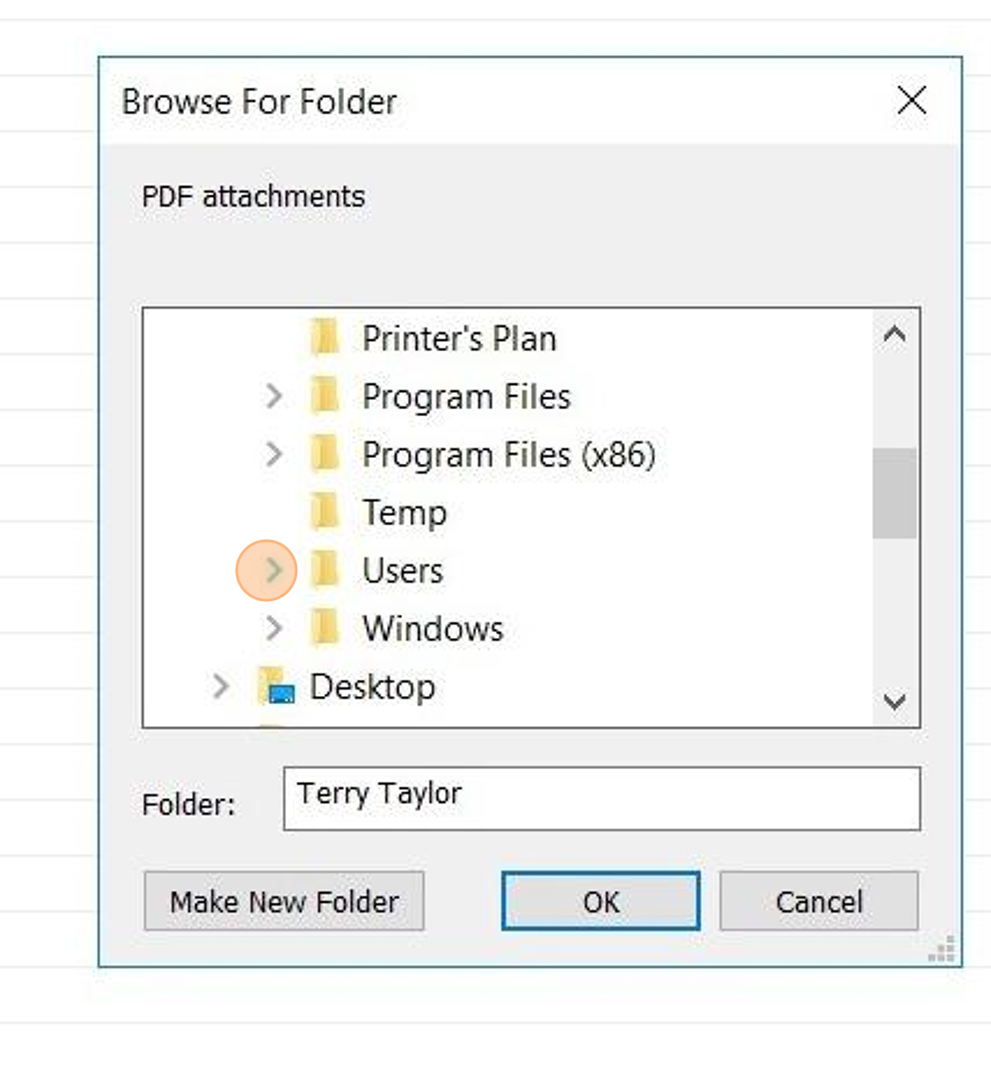
7. Click on your desired user

8. Choose your desired save location. ( I chose "Downloads")

9. Click "OK"

10. Click "Close"

Now when you choose 'Print To' and choose the 'PlanPDF' driver, a file will be sent to your desired location.