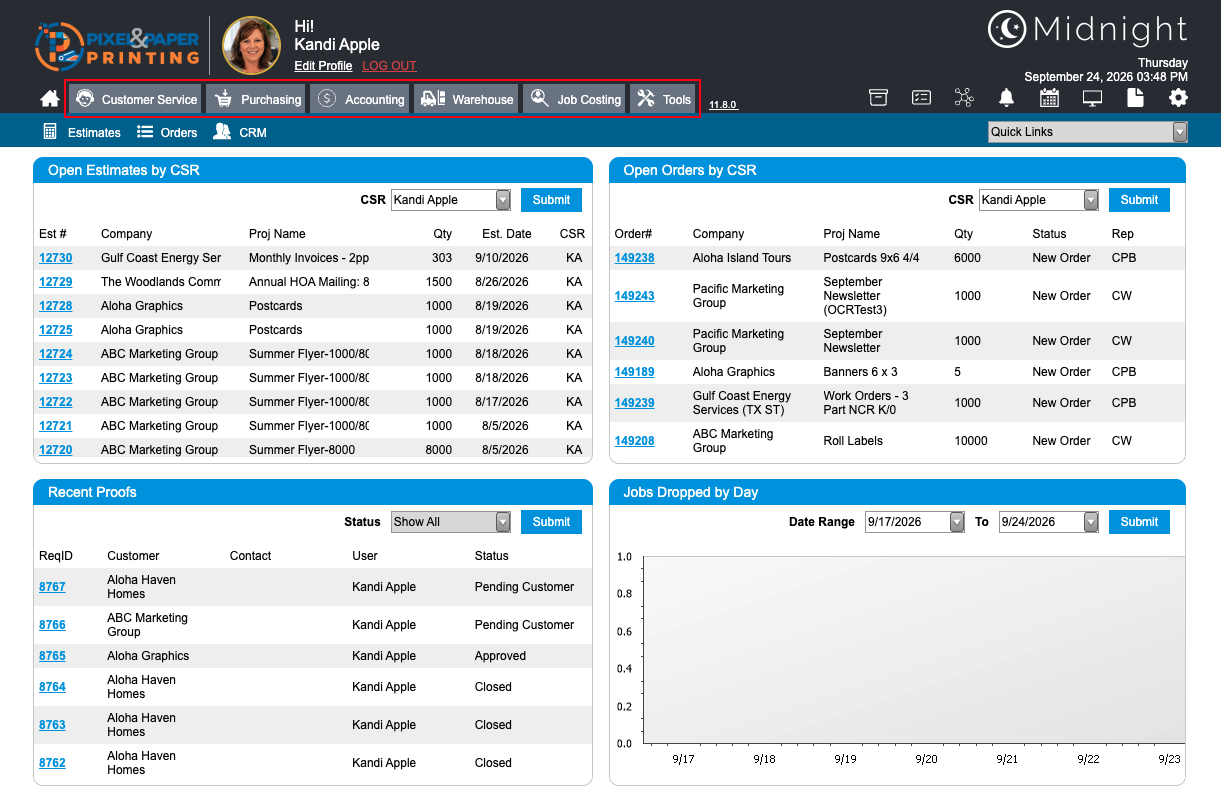
Several controls are visible throughout Midnight that help users navigate between screens, modules, and functions within the application. Understanding these navigation elements will make it easier to move throughout the system and locate the information you need.
Home Screen
When you log in to Midnight, you are presented with the Home Screen. At the top of the screen, you will see the Home icon, module navigation tabs, and several quick-access icons. Depending on your security permissions, available modules may include Customer Service, Purchasing, Accounting, Warehouse, Job Costing, and Tools. These navigation controls remain available throughout Midnight, allowing users to quickly move between modules and functions without returning to the Home Screen.
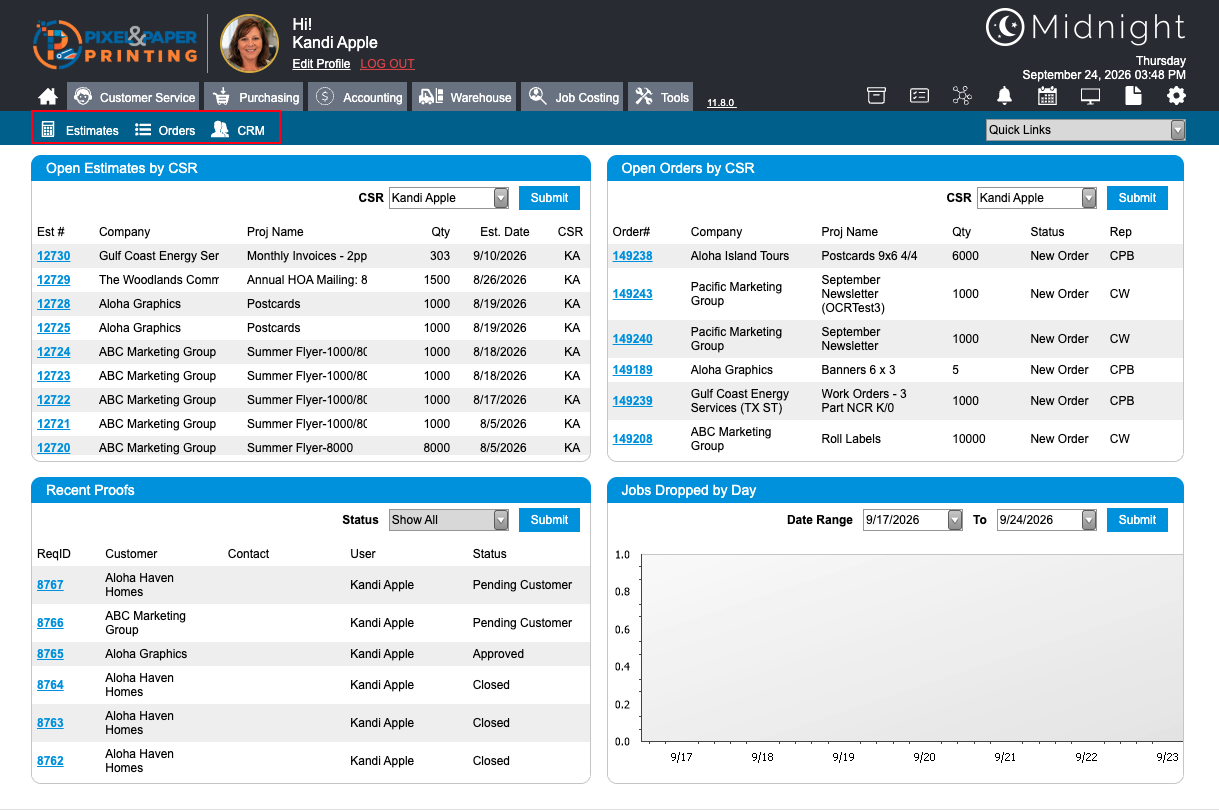
Below the module navigation is a blue menu bar that displays tabs and options specific to the module you are currently using. These tabs will change as you move throughout the system, providing access to functions and screens related to the selected module.
Navigation Icons
To the right of the Tools tab is a row of navigation icons that provide quick access to commonly used Midnight functions. These icons remain available throughout the system and allow users to quickly access information and administrative functions without returning to the Home Screen.

From left to right, these icons provide access to:
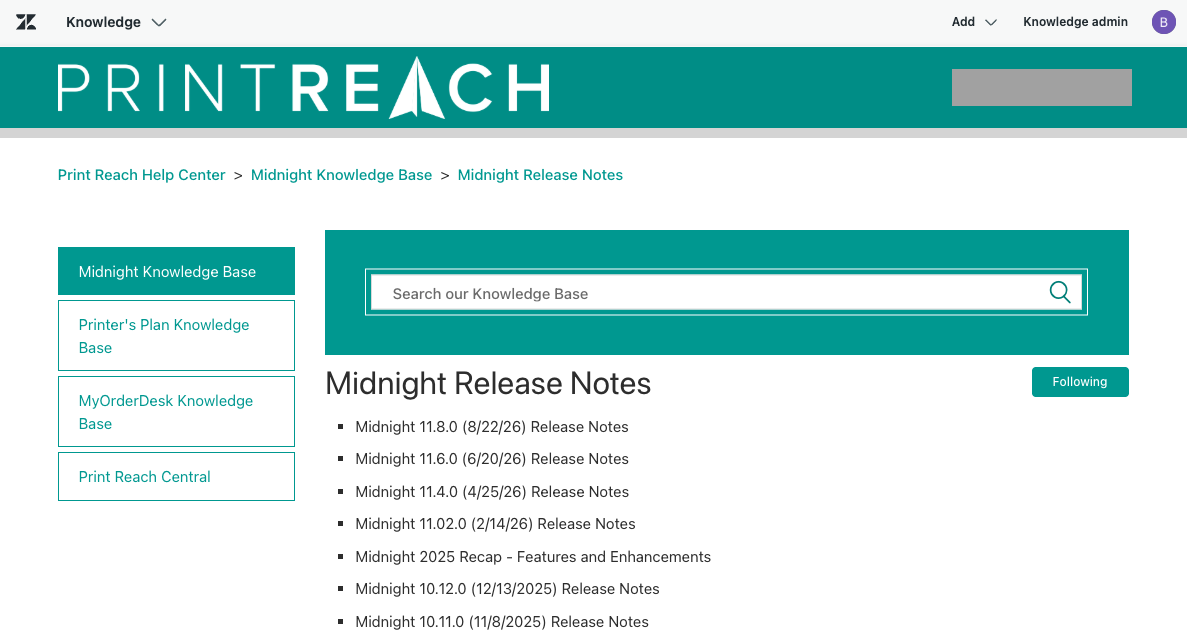
11.8.0 (Current Midnight Version): This hyperlink opens the Midnight Release Notes section of the Midnight Knowledge Base, where users can review enhancements, new features, system improvements, and bug fixes included in the currently installed version of Midnight. Users can also browse release notes from previous versions to review historical changes and feature updates.
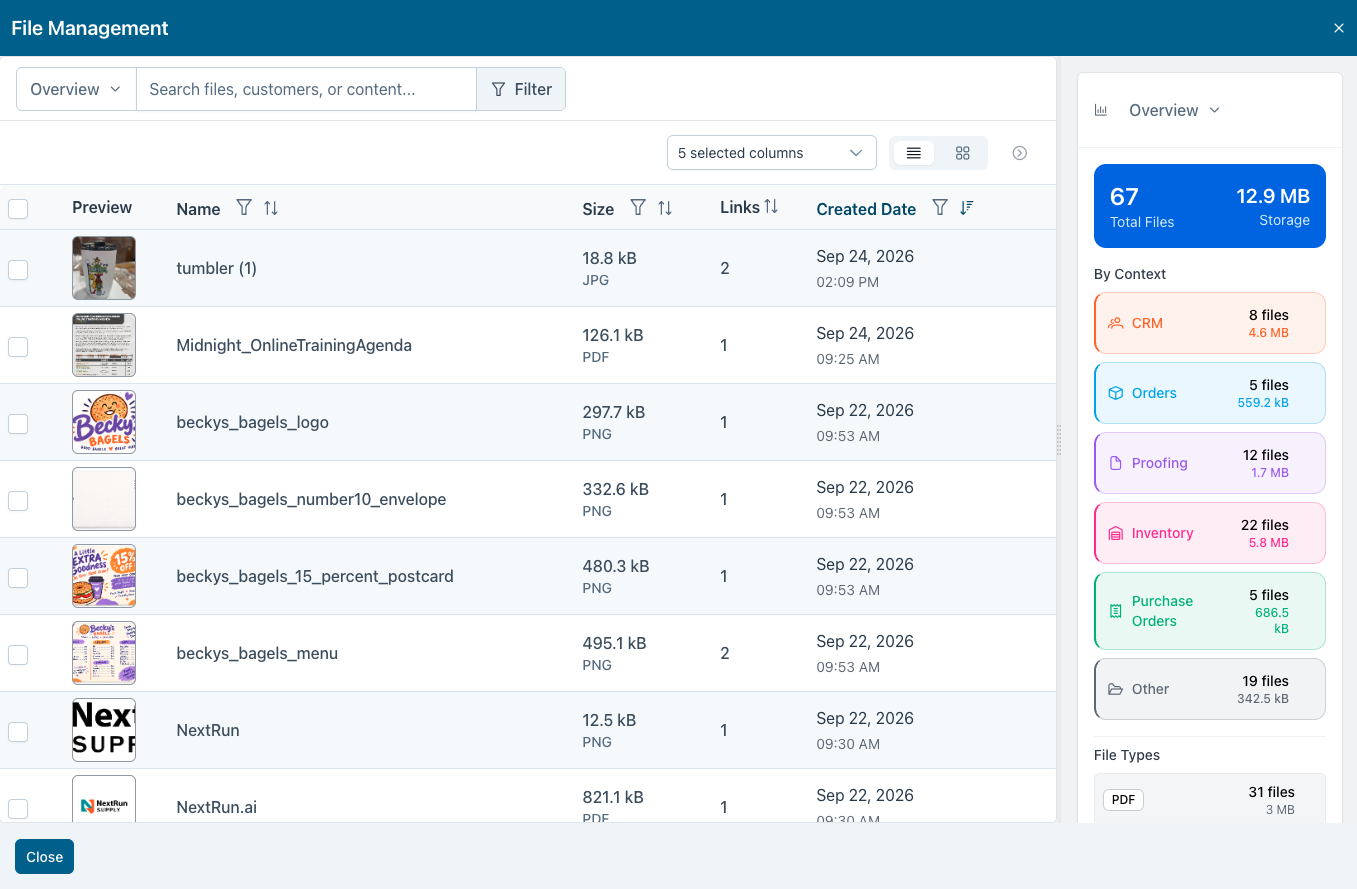
 File Management
: Provides access to the File Management module and stored documents.
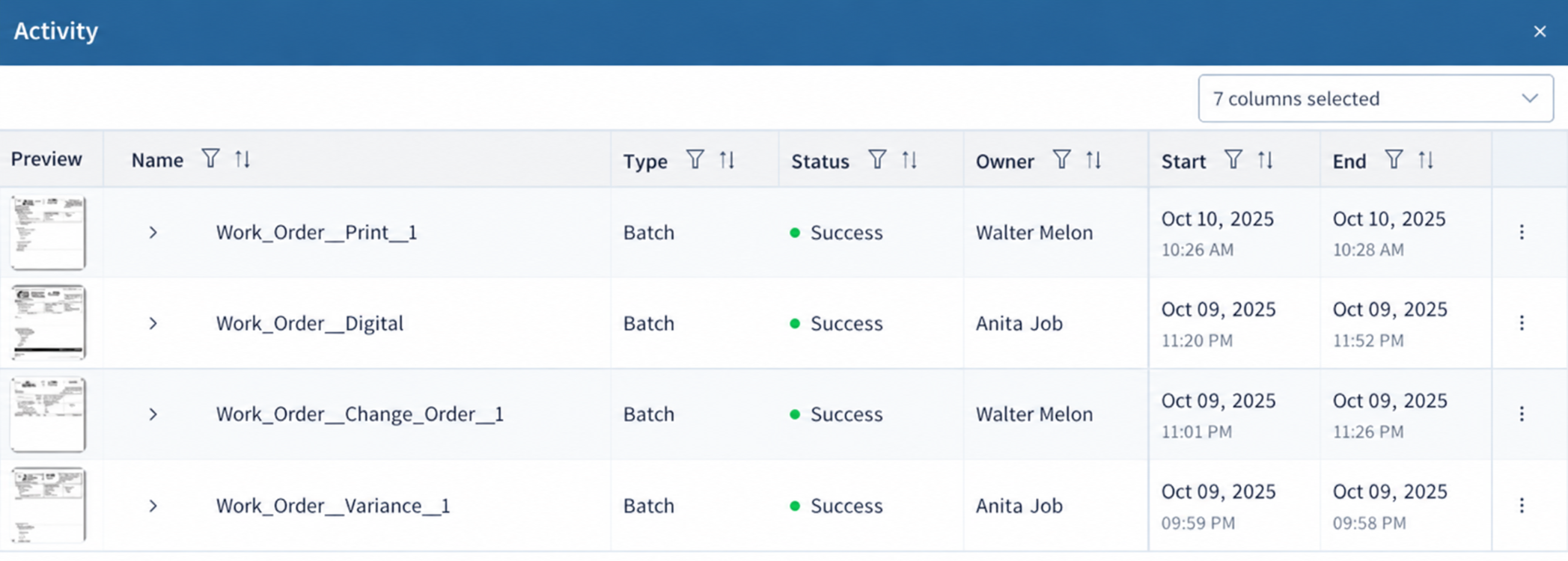
 Activity
: Displays activities, tasks, and related workflow items.
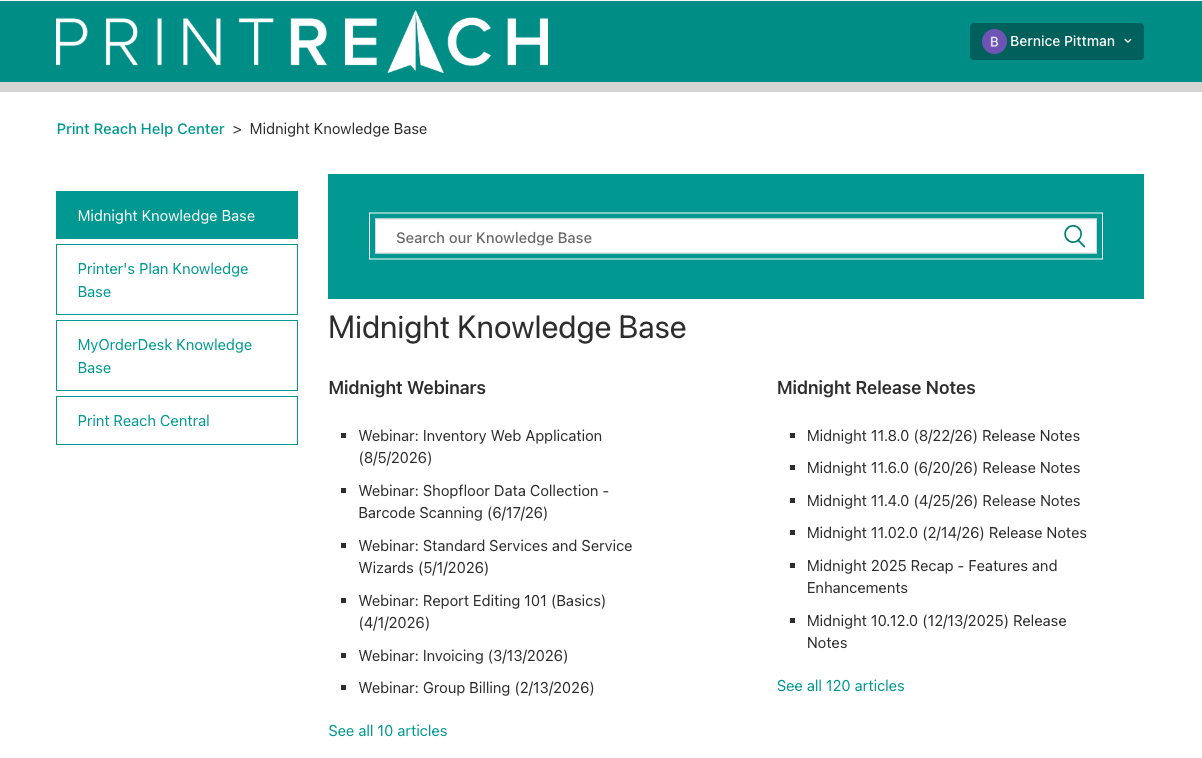
 Midnight Knowledge Base
: Opens the Midnight Knowledge Base, providing access to documentation, setup guides, training materials, and troubleshooting resources.
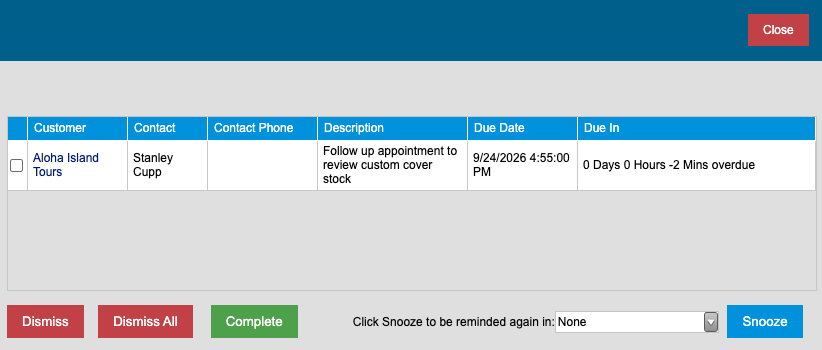
 Activity Notifications
: Displays alerts, notifications, and system-generated messages that may require user attention. When there are open notifications, the icon will display a
red circle containing a number, indicating the total number of unread or outstanding activity notifications. Selecting the icon opens the notification list, allowing users to review and manage these items.
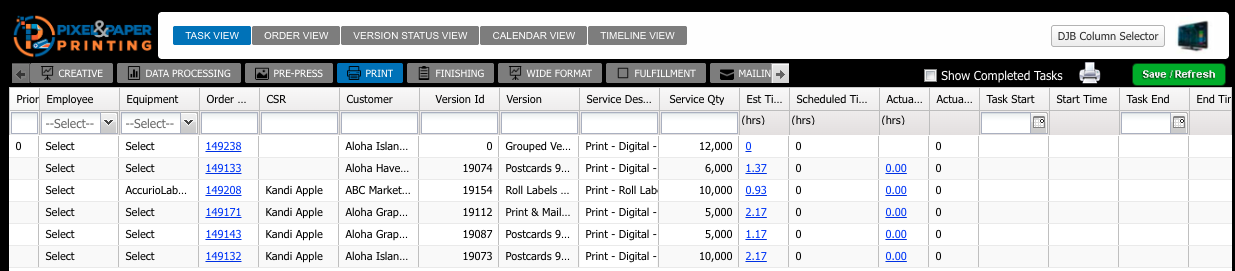
 Dynamic Job Board (DJB)
: Opens the
Dynamic Job Board (DJB), which provides visibility into production schedules, job status, resource allocation, and workflow management. The DJB includes several viewing options, allowing users to organize and monitor work based on their operational needs.
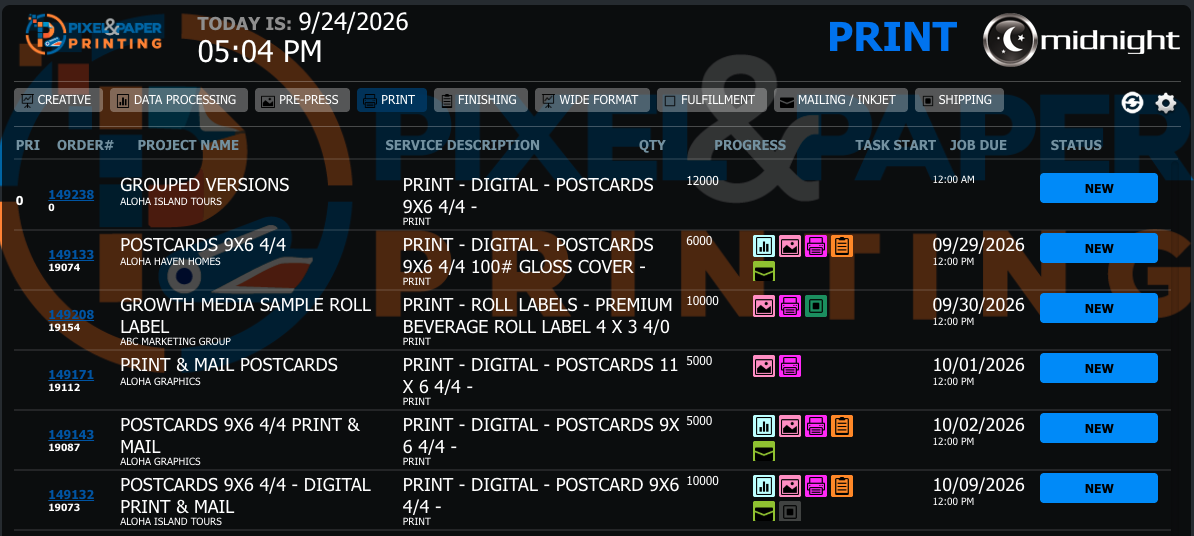
 ShopFloor View
: Opens the
ShopFloor View, a production-floor display designed to be shown on large screens or televisions throughout the shop. The ShopFloor View provides a continuously scrolling list of orders and activities in production, allowing employees to quickly monitor job status and production progress in real time.
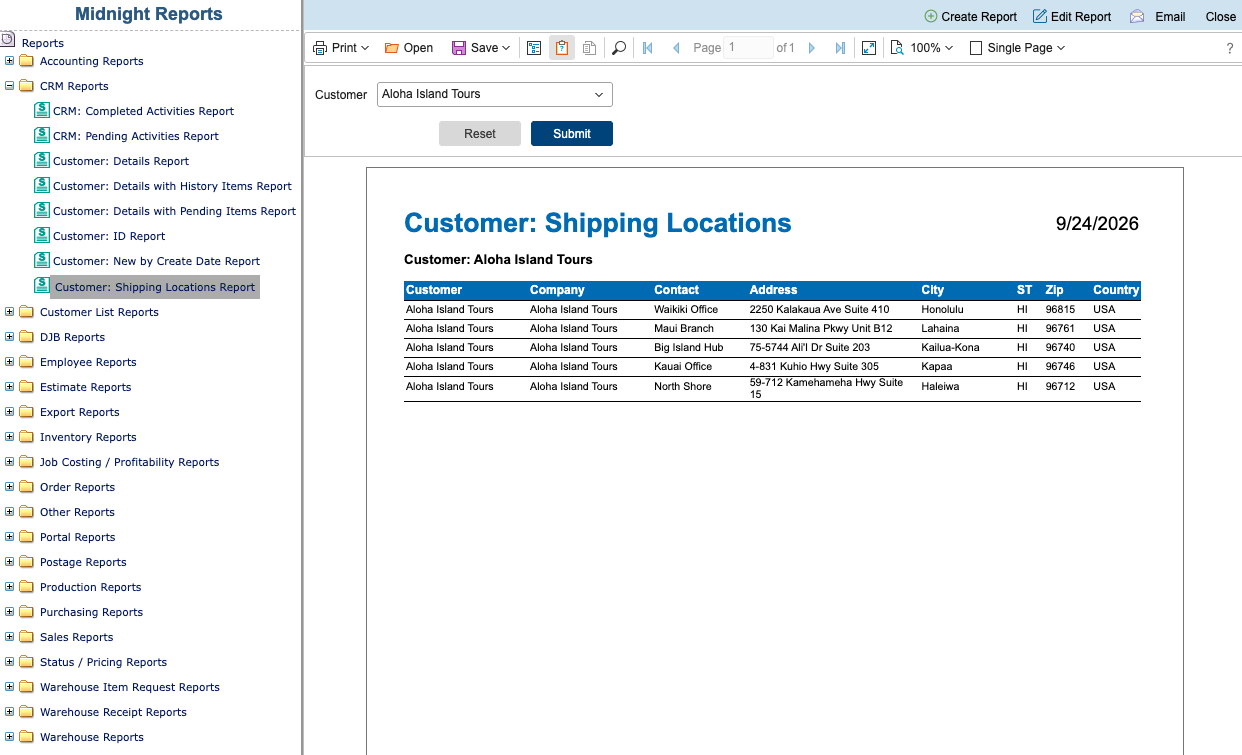
 Reports Module
: Provides access to the Midnight Reports Module.
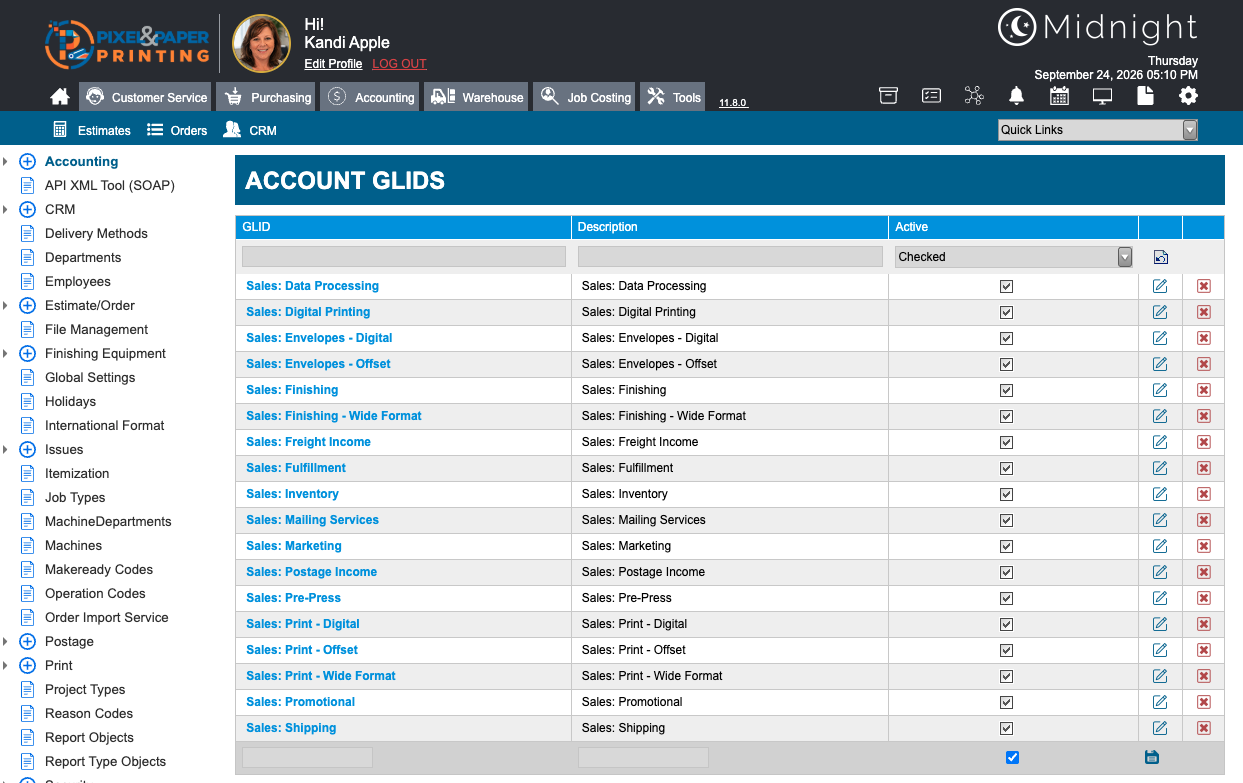
 Admin Settings
: Opens the Administration menu where system configuration, setup, security, reporting, and other administrative functions are maintained.
Search Screens
Clicking any of the blue module tabs will take you directly to the Search screen for that module. The Search screen serves as the starting point for locating, creating, and managing records within the selected module.
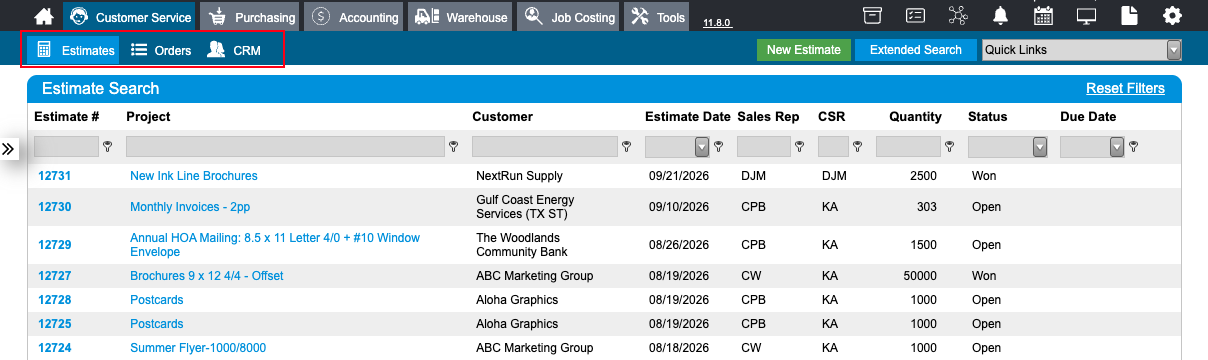
Quick Links
The Quick Links drop-down provides fast access to commonly used screens, reports, and functions throughout Midnight. Quick Links are designed to reduce navigation time by allowing users to jump directly to frequently accessed areas of the system.

The Quick Links list can be customized to include commonly used activities for the currently logged-in user. Users may have shortcuts to screens such as:
- Add Estimate
- Add Order
- Customer Search
- Inventory Search
- Frequently Used Reports
- Custom Links
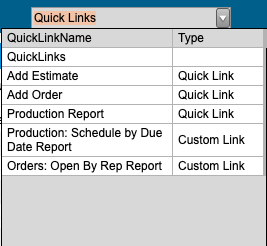
In the example above, the user can quickly access the Add Estimate, Add Order, and various Report Viewing screens directly from the Quick Links menu. This feature can help improve efficiency by reducing the number of clicks required to reach commonly used areas of Midnight.
Standard Quick Links are system-provided shortcuts that are available based on Midnight's built-in functionality and the user's permissions. Custom Links can be created and managed within Admin → Global Settings → Custom Links, allowing organizations to create shortcuts to frequently used Midnight screens, reports, websites, and other resources.
Recently Visited Shortcut
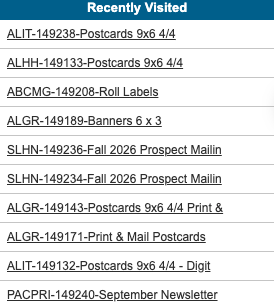
Many Midnight modules include a Recently Visited shortcut that provides quick access to records you have recently viewed within that module. This feature makes it easy to return to records you were previously working on without having to perform another search.
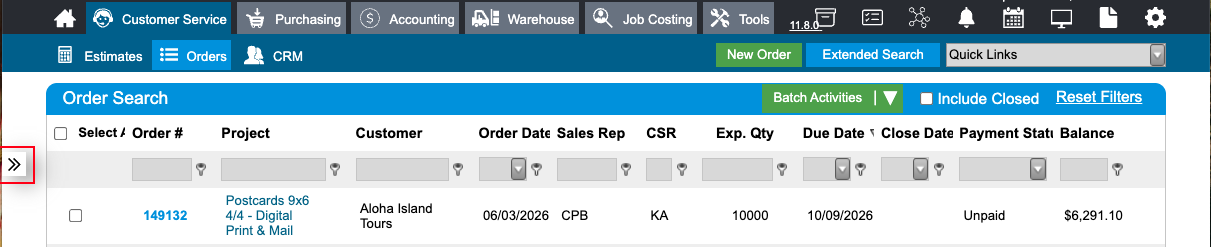
For example, if you are in the Orders module, selecting Recently Visited will display the most recent orders you have opened. Similarly, within the Estimates, Customers, or other modules, the Recently Visited list will show the records you have recently accessed in that specific area of Midnight.